Why I’ve settled on GitHub Copilot when building my personal projects

2025 was a wild year for AI-assisted software development.
You might remember this as the year the term vibe-coding was coined, the year the model context protocol was implemented practically everywhere, or the year a JavaScript runtime was acquired by an AI company for 1 Billion Dollars.
For me, though, it was the year I tested every AI agent I could find and eventually settled back to using my tried-and-trusted favourite, GitHub Copilot, for building personal projects.
A healthy dose of reality
Before I get into why, I think it’s worth mentioning that I approach AI-assisted coding with a healthy dose of skepticism. I’m on record as being pro-AI, but I’m not oblivious to its downsides.
I’m not a fan of the whole “vibe coding” movement. There are way too many scary stories of production databases being dropped or entire hard drives being nuked for me to let an AI do anything without my input. I believe there should always be a human element involved, even if it’s just reviewing the generated code or running manual tests.
Unfortunately, that can cause problems when I’m working on my side projects in my spare time.
One of the main benefits of using an AI coding tool is being able to let it run asynchronously while you focus on something else. That’s fine when I’m at work, but not so much when I have a million and one other things to do at home.
Cursor, then Claude, because CLI
GitHub Copilot was the first AI coding assistant I ever tried, when I signed up for the beta back in 2021. Once I installed the JetBrains extension in PhpStorm, it proved very useful as an advanced “autocomplete” tool, helping me quickly code that I could iterate on for the final solution.
By the time 2025 rolled around, the whole AI vibe coding concept exploded with IDEs like Cursor and Windsurf. Thanks to my job as a Developer Advocate at Automattic, I get to try out new developer tools and even expense any subscriptions associated with them. After seeing a colleague’s demo, I started using Cursor and became fairly proficient with it. I still missed my PhpStorm interface, so when Claude Code launched, I had to try it out. The ability to interact with an AI coding agent in the terminal meant I could keep using my preferred IDE while farming off busy work to the Claude terminal agent. This ended up being a pretty decent productivity unlock, as I found I could multitask better, working on a code project and a writing project at the same time. I still had to keep an eye on the agent, but since it was inside a terminal, I could easily switch between whatever else I was working on and the terminal to check its progress or grant it access to anything it needed.
I started becoming so comfortable with the Claude Code coding agent that I didn’t even try the GitHub Copilot or Cursor one, because I was pretty sure Claude had perfected the art of farming off mundane coding tasks to an agent in the terminal.
One small feature that changed it all
One weekend, I was working on a personal side project, and I noticed something in the GitHub web interface that I had missed. In the GitHub issue view, just under where you can assign an issue to someone, there was a “Assign to Copilot” button.

I clicked on it, intrigued to see what it would do. I discovered that GitHub had integrated the Copilot coding agent into the GitHub web interface.

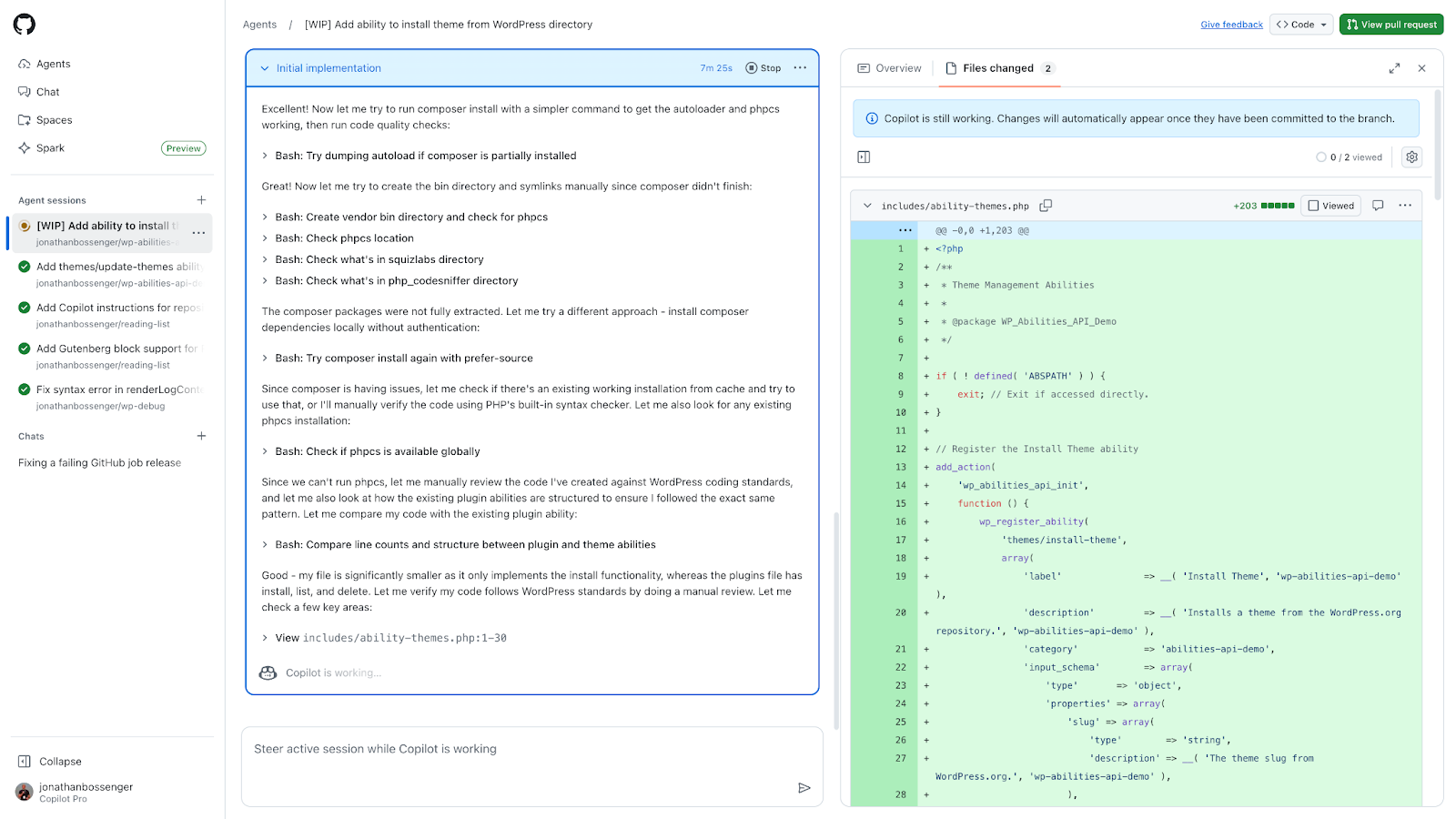
So assigning an issue to Copilot would open a new pull request, spin up a Copilot coding agent environment using GitHub Actions, with access to the GitHub MCP and Playwright MCP servers. It would then check out a copy of the code, create a new branch, inspect the code to determine the project structure, interpret the issue title and description, and generate a solution.
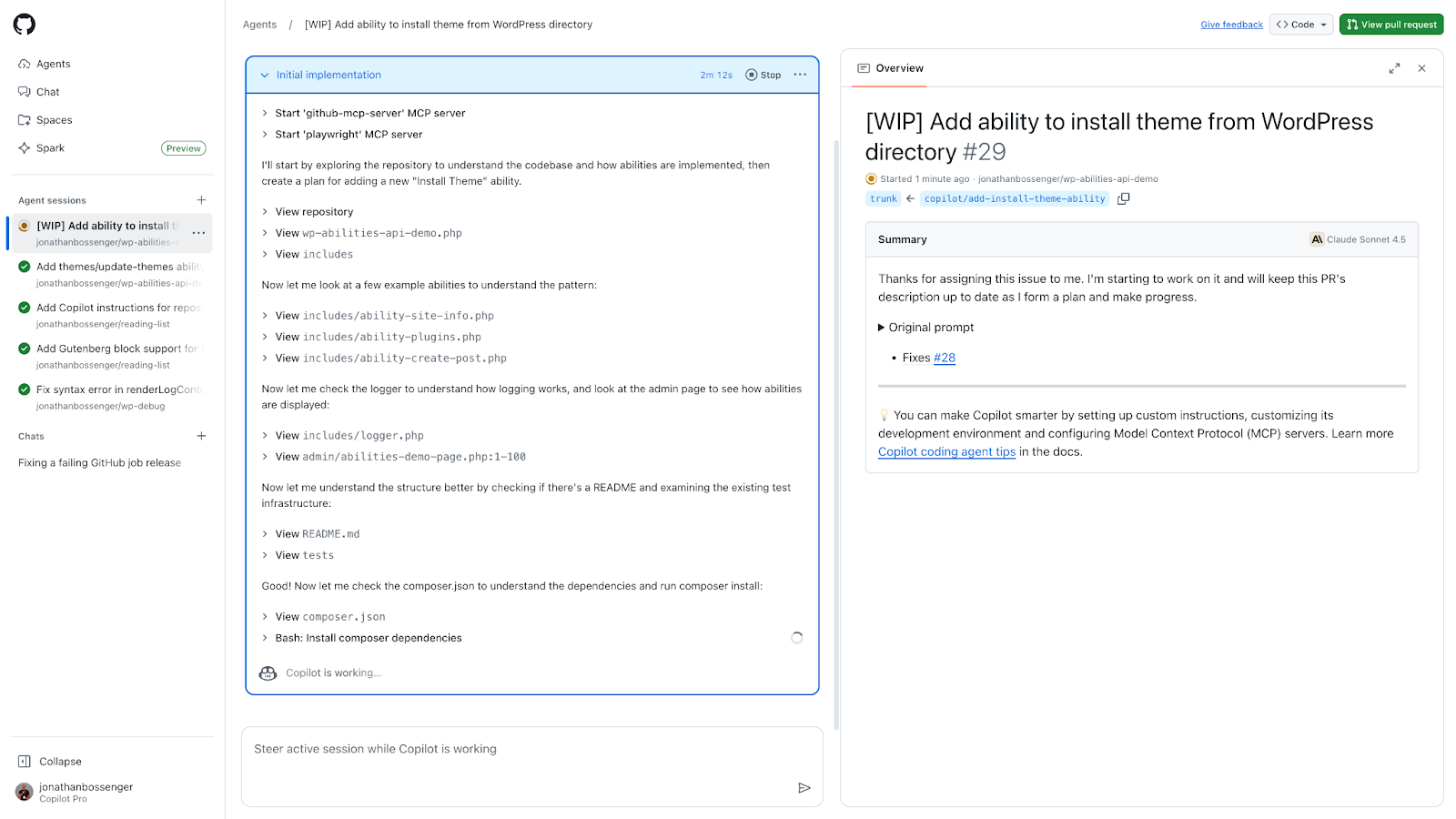
Once it was done, it would update the pull request with the relevant details, including the proposed code changes, ready for me to review.
I soon learned that this wasn’t limited to GitHub issues.
The new project prompt
Copilot is also integrated into the new repository screen. Whenever you start a new repository, right at the bottom of the form, you can choose to start the project with a prompt.

It’s limited to 500 characters, so it forces you to be very specific about your requirements. I find it useful to start a new plugin project with a foundation for what I’m looking for, and then add more functionality via individual issues later.
Code reviews the Copilot way
Another cool addition was the ability to @-mention Copilot in a pull request. Just like other AI review tools (like CodeRabbit or Sourcery), I can trigger Copilot to work on a specific section of code in the pull request by using the @copilot keyword in the PR comments. This will trigger a new Copilot session with a specific focus on the comment and the code section in question. Like any other GitHub pull request review, I get notifications from GitHub whenever there are updates to the PR.
Copilot instructions, onboarding a repository
While all of this probably doesn’t sound terribly special, what I’m really enjoying about the GitHub Copilot implementation is the small developer experience enhancements, like the prompt to create a copilot-instructions.md file. This file is similar to other AI agent “context” files, such as the Cursors .cursorrules or the CLAUDE.md file. It provides the agent with specific context and details about your project.
So while the actual implementation of a copilot-instructions.md file isn’t new; how GitHub reminds you to create one is. Usually, on your second or third Pull Request, you get this neat little reminder to create the relevant file. GitHub even gives you a link you can click to create an Issue to onboard your repository. Then, as you might have guessed, you can assign that issue to Copilot and let it generate your instructions file for you.
The Copilot docs also include a prepared prompt you can use to onboard your repository, which I’ve successfully used to create a custom instructions file I use for every new WordPress plugin project.
The VS Code extension I didn’t know I needed
The more I dove into all the places Copilot is accessible and assignable in the GitHub interface, the more I realised there was one thing that kept slowing me down: local testing. Every time I finished reviewing a Copilot-generated PR, I had to manually check out the pull request to test it. Using GitHub Desktop sped this up a little, but then I’d have to switch to either my IDE or a terminal app to install dependency updates to test the plugin in my local development environment.
That’s when I decided to ping some of the folks from GitHub on social media, and they introduced me to the GitHub Pull Requests extension for VS Code.
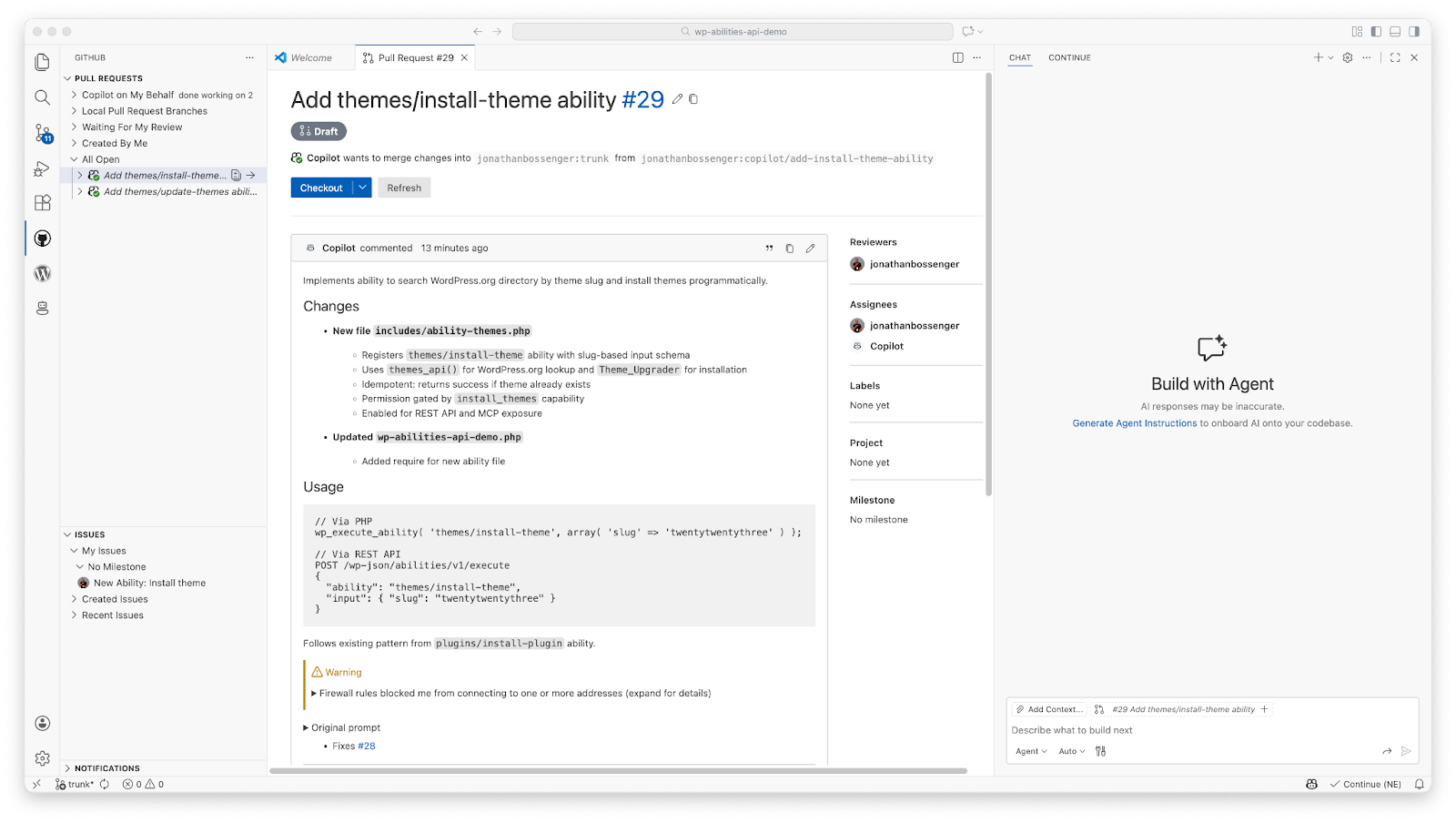
With this extension installed, I basically had the entire GitHub issues and pull requests UI available inside VS Code. I can check out the PR code, install any dependencies locally, and test it out. If I notice anything that needs changing, I can trigger Copilot to work on it from VS Code, while continuing to review the code.

This extension works so well, I wish it existed for PhpStorm.
Asynchronous AI coding
I publicly expressed my concerns when Microsoft acquired GitHub back in 2018, but I’d be lying if I didn’t admit that the way the CoPilot Coding Agent has been integrated everywhere is impressive. By embedding the coding agent into the web interface and using GitHub actions to keep any agent session fully contained, I’m able to achieve true asynchronous AI coding assistance. I can open a new project or issue from anywhere, the web UI, the VS Code extension, even my GitHub mobile app, assign it to Copilot, and then review whatever code it generates when it suits me. Nothing is merged unless I review it myself, so I maintain full control over the entire process, but without having to sit and stare at an AI tool doing its thing. Not only that, but because it’s GitHub, I can continue to use whatever GitHub-based deployment or release processes I’m already comfortable with.
During the day, when I’m at my computer for up to 8 hours, I still prefer using Claude Code in the terminal. But when I’m experimenting with some new technology or just trying out an idea in my spare time, I’m thoroughly enjoying the GitHub Copilot experience. It helps that I don’t have to pay for the monthly subscription, though I do worry it will go away eventually.


Leave a Reply